Features
Ten apps' worth of tools, in one project.
A whiteboard, a document editor, databases, spreadsheets, a focus timer, a tracker and a map of your work. Here is everything BrainSwitchs does today.
Projects and the canvas
Every project is an open canvas. Drag empty space to move around, scroll or use the zoom bar to zoom, and place blocks anywhere.
Why now?
Three customers asked for exports this month.
This week
Decision Gate
"Ship exports to paid plans first. Review in two weeks."
Blocks
Text, sticky notes, checklists, references (links), images, shapes and lines, sheets (spreadsheets with formulas like =SUM), embeds, databases, pages and sub-canvases.
Adding blocks
Pick a tool in the bottom toolbar and click the canvas, double-click anywhere for a note, paste an image or link, or drop files.
Connections
Select a block and use connect to draw an arrow to another. Add labels or dashed lines to show how ideas relate.
Frames
Group related blocks into a frame (Cmd/Ctrl+G). Moving the frame moves everything in it.
Pen and highlighter
Sketch and mark up directly on the canvas for spatial thinking.
Block details
The small i icon on a block shows when it was created and added, and its project, without cluttering the block.
Notes stay notes
Opening a note never turns it into a page. Converting is a separate action that asks first.
Sub-projects
A canvas block can open its own canvas. Sub-projects are labelled with their parent on the Projects page.
Commands
Cmd/Ctrl+K opens the command palette for anything on the canvas.
Undo
Cmd/Ctrl+Z and Shift+Cmd/Ctrl+Z undo and redo canvas changes.
Export and share
Export a clean PNG, Markdown or a Word document; share a project with collaborators by email.
Pages
Documents for longer thinking, with everything a modern editor has, and live blocks you can place anywhere.
Product strategy, 2026
612 words · 3 min read · Edited by you
We sell to small teams first. Below is the map we drew on Monday, still live. Drag anything in it and the canvas updates everywhere.
Open questions
-
Pick a price - Who owns onboarding?
Writing
Headings, bold, italic, underline, strikethrough, lists, checklists, quotes, code, dividers, links, text colours and highlights. Markdown shortcuts work: # for a heading, - for a list, [] for a checklist.
The / menu
Type / on an empty line, or use Insert, to add databases, charts, images, canvases, link previews, embeds (YouTube, Figma, Loom, Maps), templates and Thinking Protocols.
Cover, icon and look
Add a cover (presets, your own image or a link) and an icon (any emoji or your own image). The palette button sets the background and the width: standard, wide or full.
Blocks on the page
Every canvas, database, image and embed has a grip at the top: drag it to float the block anywhere on the page (hold Shift to slot it between paragraphs). The corner handle resizes it, and the settings button sets the layout: on its own line, wrapped by text, inline, behind or in front of text.
Undo blocks
Removed or moved a block by mistake? Cmd/Ctrl+Z brings it back.
Organise
Nest pages inside pages, group them into notebooks, filter by Logical or Creative, and collapse the Pages and Notebooks lists.
Focus mode
The Focus button shows only the page, full screen. Esc returns.
Details
Under the title: word count, reading time and who edited last. The i icon shows created and edited times, characters, notebook and linked canvases.
With canvases
Send any text to a canvas as a note, open pages beside a canvas in the side panel, or drag a page from the panel onto the canvas.
Export
Download a page as a Word document or Markdown, or copy it as Markdown.
Databases and charts
Notion-style databases that live in your library and can appear on any page or canvas. Every copy shows the same data, so editing one updates all.
Launch tasks
| Name | Status | Tag | Due |
|---|---|---|---|
| Write launch post | Doing | Content | Oct 3 |
| Pricing page | Todo | Web | Oct 7 |
| Onboarding emails | Done | Content | Oct 1 |
| Export to Word | Doing | Product | Oct 10 |
| Calendar sync | Todo | Product | Oct 14 |
Creating
A new database starts empty and asks for a name. Choose a template from the dropdown (Task tracker, Reading list, Content calendar, Habit log) and optionally add example rows, or start blank. The table icon in the Pages sidebar makes a page that is just a database.
Properties
Text, number, select, status, multi-select, date with optional time, checkbox, link, formula and relation to another database. Rename or delete any column, and use Edit options to rename or remove status and tag choices.
Rows
Add rows with New, edit any cell in place, and click Open on a row for its own page: every property, a cover and icon, and rich notes.
Row templates
On a row page, Save as template keeps its values and notes. The arrow next to New creates rows from your templates.
Views
Table, Board (drag cards between statuses), Calendar, Timeline, List, Gallery (with images) and Chart. Each view keeps its own filters and sorting.
Table sizing
Drag a column edge or a row's bottom edge to resize. Double-click to reset.
Dates and times
Pick dates on the calendar and type times like 9:40 pm. Times follow your 12h or 24h setting.
Charts
Vertical or horizontal bars, line, area, donut and pie. Choose what to show (number of rows, total or average of a number column), what to group by, and the order. Values are printed on the chart, the sentence under it explains what it shows, and the handle changes its height.
Formulas
Use prop("Column") with + - * /, comparisons, & to join text, and SUM, AVERAGE, MIN, MAX, ROUND, ABS and IF.
Thinking Protocols, templates and the Decision Gate
Ready structures for when you are stuck, and a habit that ends every sprint with something decided.
Thinking Protocols
First Principles, Inversion, 5 Whys and more. Pick one in the canvas toolbar and it is laid out as blocks ready to fill in. Protocols also work inside Pages from the Insert menu.
Templates
Starter layouts for common jobs, on canvases and in pages.
Sprint timer
Run a 25 or 50 minute focus sprint from the timer at the top of the canvas.
Decision Gate
When a sprint ends, write one decision or next step. It is stamped onto the project so ideas never pile up unfinished.
Tracker
Log focus that happens anywhere, including away from the screen: reading, studying, writing by hand or a thinking walk.
Logical · Studying
16 Hz focus tone · headphones on
Pick Logical or Creative and what you are doing.
Choose an open stopwatch or a countdown sprint, and turn on the focus sound if you like.
Start. When you stop (early is fine), write a one-line takeaway. The session feeds your Timeline and Living Brain.
Me: Timeline, Calendar, Living Brain, Brains and Network
Everything about how you think, grouped under Me in the top bar.
This month
Logical lean
Drag to see how the brain changes. In the app this comes from the sessions you log.
Me overview
Cards for each area and your recent sessions, newest first.
My Timeline
A scrollable day view with tasks you planned beside the sessions you recorded, a now line, zoom levels and a compact activity history that loads more as you go. Choose 12h or 24h time.
My Calendar
The month view of the same tasks, with focus time per day. Add any task to Google Calendar, or download open tasks for Apple Calendar or Outlook.
Scheduling tasks
Hover a checklist item on a canvas and use the calendar icon to set a date and optional time. It appears on the Timeline and Calendar.
Your Living Brain
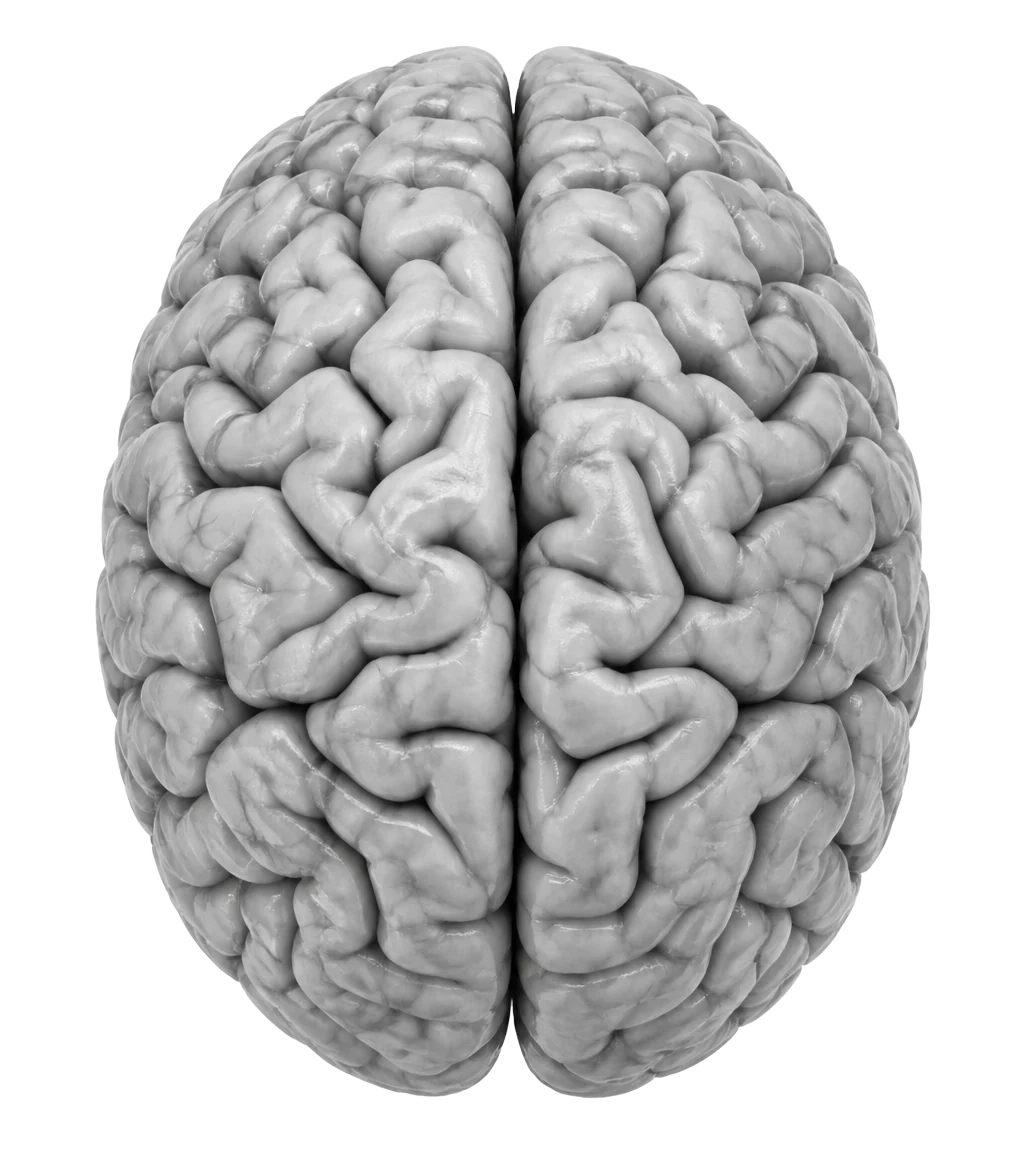
Each half of the brain brightens with the time you give that mode, with your totals and a short read of your balance.
My Brains
The mini brain inside each project, showing how its content splits between logical and creative.
Network & Patterns
Normal shows projects as nodes and shared topics as pathways. Advanced shows your work on the brain map with zoom and pattern analysis.
Capture, Scratchpad and Split view
Tools that keep you in flow.
Capture
Cmd/Ctrl+Space from any page saves a thought in two seconds and files it where you choose.
Scratchpad
Alt+S opens a quick notepad. Later, turn a note into a project or clear it.
Split view
Open up to three canvases or pages side by side and drag the dividers to resize.
Focus sound
A gentle binaural-style tone matched to the mode: 16 Hz for Logical, 10 Hz for Creative. Use headphones.
One sound everywhere
Turning sound on or off anywhere (canvas, page, tracker, split view) changes it everywhere, and only one copy ever plays.
It keeps playing
Moving between pages and canvases never restarts it. Switching a project's mode moves it to that mode's tone.
If the browser blocks it
Some browsers need a click before playing sound. Press Sound on again.
Archive: Later, Done and Bin
Clear your active list without losing anything.
Later and Done
Park a project for later or mark it done from its card. Drag items between shelves.
Bin
Deleted projects and pages wait in the Bin, where you can restore them. Delete all moves a shelf to the Bin; only Empty Bin deletes for good, after you confirm.
Quick page delete
The bin icon next to a page in the sidebar moves it to the Bin, with an Undo.
Settings, sharing and your data
Theme
Light or dark from the top bar, on every page.
Time format
12h or 24h from the Timeline, used everywhere times appear.
Sharing
Share a project with collaborators by email. Shared pages show who edited last.
Backups
Projects has Back up everything, Restore backup and Export as document.
Privacy
Your workspace is private to your account and syncs across your devices.
Want step-by-step instructions? Read the full guide.